Features · Import & switching
Import the equipment list you already have — from a spreadsheet or another app
Upload a CSV and every row becomes an item with its own QR tag. Leaving Sortly, EZOfficeInventory, ShareMyToolbox or GoCodes? Upload their export as it is: FlowNext recognises the file and reads it with that app's own column names.
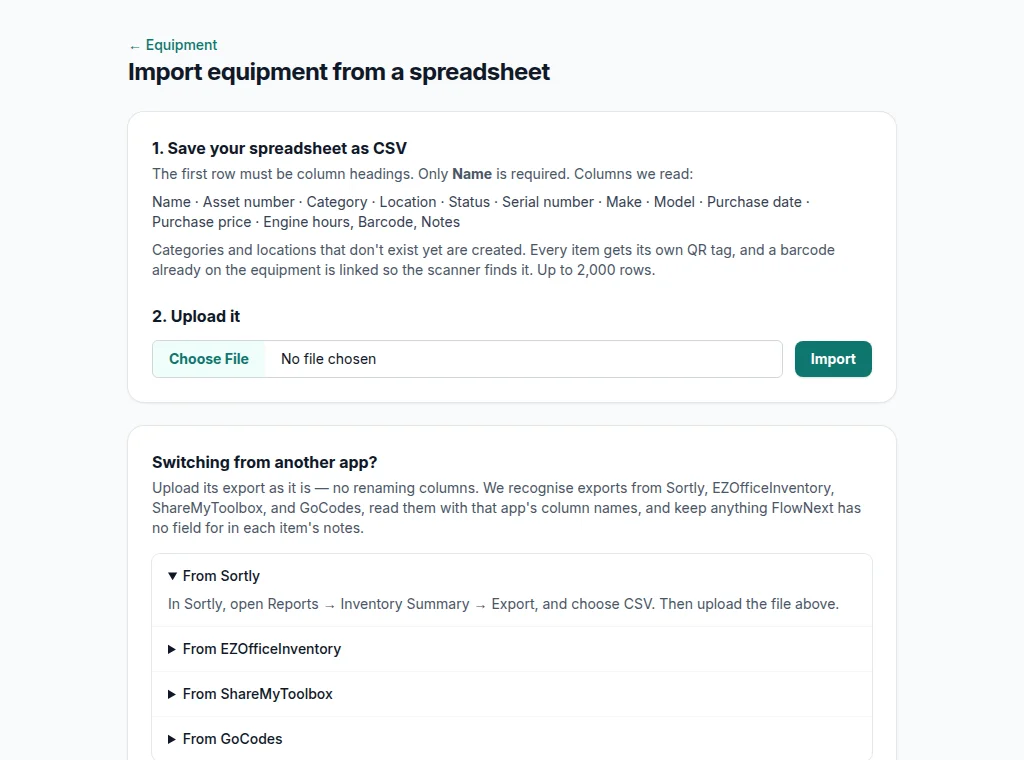
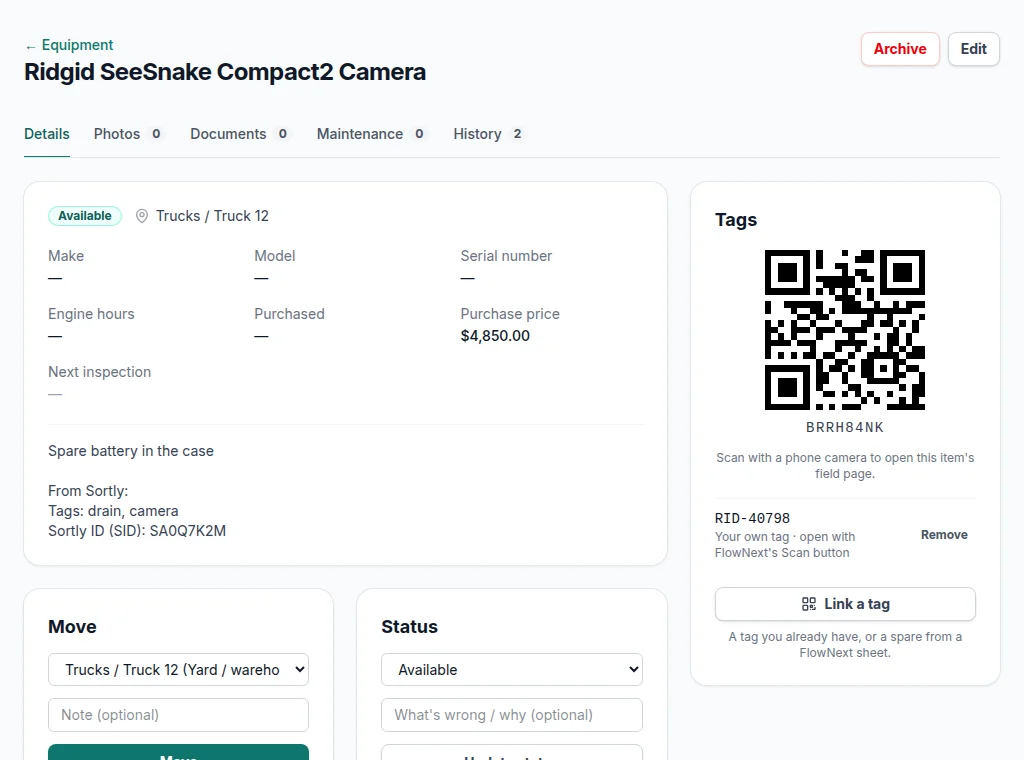
Screens from a demo account with made-up equipment and people.
Switching from another app
No renaming columns to match a template. FlowNext recognises these exports by their headings, reads that app's fields into the right places, and keeps anything it has no field for in each item's notes, under “From app:” — a competitor's custom fields are your data, so none are thrown away.
From Sortly
Run the Inventory Summary export as CSV. Folder rows are skipped, each item's folders become its location (“Trucks / Truck 12”), the barcode stored on the item is linked, and Sortly tags land in the notes.
From EZOfficeInventory
Export the Assets list. The Asset Identification Number becomes the asset number, groups become categories, and “Purchased On” dates are read in EZO's month/day/year format.
From ShareMyToolbox
Export your items and save the file as CSV. The Title is the name, Item Detail goes into notes, and the return warehouse becomes the item's location.
From GoCodes
Export the Asset List to Excel and save it as CSV. Names, numbers, categories, locations, serials and purchase details come across; other columns go into notes.
Photos and attached files don't come across: an image link in a recognised export lands in the notes, and inspection certificates are uploaded again in FlowNext, where AI reads their due dates on Pro and Business.
Or any spreadsheet
Save it from Excel or Google Sheets as CSV. The first row is headings, and only a name column is required. Headings are matched loosely — “Asset #”, “asset_number” and “Unit Number” are all the asset number — so most lists import without editing.
Columns FlowNext reads:
- Name
- Asset number
- Category
- Location
- Serial number
- Make
- Model
- Purchase date
- Purchase price
- Engine hours
- Barcode
- Quantity
- Notes
Categories and locations named in the file are created as it imports. Dates can be written 2024-03-18, 03/18/2024 or 03/18/24. Up to 2,000 rows a file.
All or nothing
Every row is checked before anything is saved. If one has a problem — no name, a date that isn't a date, a barcode already on another item, more items than your plan has room for — nothing is imported and every problem is listed by row number. Fix them in the sheet and upload again; you never end up with half a list.
Quantities
FlowNext tracks each piece of equipment on its own, not stock counts. A row with a quantity above 1 imports as one item with the quantity in its notes, and the result tells you how many rows that was, so you can add the others as items if they need tags.
After the import
-
Every item has a tag
Each imported item gets its own QR code. Print them all on Avery labels from the equipment list. See QR and barcode tags on Pro and Business.
-
Old labels keep working
Put a Barcode column in the file and each code is linked to its item, so FlowNext's in-browser scanner finds the item from the sticker already on it. A phone's own camera app still needs a FlowNext QR label.
-
Out again any time
The equipment export uses the same columns the import reads, so the list opens straight back in Excel or moves to another account.
Importing is on every plan, including the free trial. The import counts against your plan's item limit; field users never count against it.
Questions
Do I have to rename my columns?+
No. Headings are matched loosely — “Asset #”, “asset_number” and “Unit Number” all read as the asset number — and exports from Sortly, EZOfficeInventory, ShareMyToolbox and GoCodes are recognised as they are.
What if a row has a problem?+
Nothing is imported. Every row is checked first, and each problem is listed by row number, so you fix the sheet and upload it again.
Do photos and attached files come across?+
No. An image link in a recognised export lands in the item's notes, and inspection certificates are uploaded again in FlowNext.
More of what's in FlowNext
- QR & barcode tags Print your own labels or use the barcodes already on your gear.
- No-app field updates Crews move gear, log hours and report problems from a phone camera.
- Inspections & AI reading Due dates from your certificates, and a morning email before they lapse.
- Reports Compliance, chain of custody, equipment by location, cost of ownership.
- Maintenance & costs Service history per machine and when to replace instead of repair.
Try it on your own equipment
14 days free on the Pro plan, no card. Import your list, print a sheet of tags and have the crew scan one today.